I have high hopes that the online Paginated Report builder is going to gain feature parity with the antiquated SSRS based Power BI Report Builder for desktop (end sarcasm)
That said, Paginated Reports are really useful because some queries aren’t necessarily meant for exploration via a report: sometimes a contractual report just needs data pulled out for it, even if that data is never thoroughly reviewed! Acknowledging that some things are just born to be exported to Excel, Paginated Reports can make your development process a little bit easier and can more directly automate your workflow. Sometimes less interaction is more interaction ™
One thing that frustrated me was learning the easiest way to inject single value parameter values into DAX queries, so let me show you. This will solve the error message “The query contains the parameter <> which is not declared”. `
Have you received this error on a multi-value parameter? Check out this post to understand how that works
1. Using a blank report, create your parameter. Do as much as you can to fill default values and compliant data types, because this will mean you shouldn’t need to make any modifications to your DAX

2. Connect to your semantic model
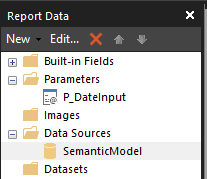
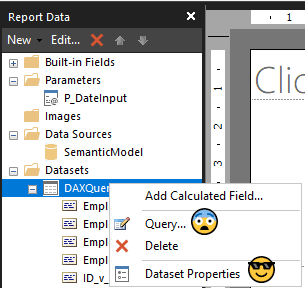
3. Right click on your model and choose Add Dataset. You will be put into the Dataset Properties section, not the Query Designer section
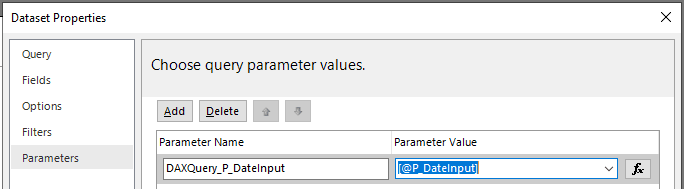
4. In the Parameters section of the dataset properties, create an internal name for your external parameter. You’ll notice if you use the drop down, it puts []’s around it, which is what this section needs. If you have multiple queries, you’ll need to repeat this process for each query, so you might want to make the internal parameter name meaningful to that query

5. Paste in your DAX Query, referencing your internal parameter name by going @ParamName. No []’s for this section.
What they don’t tell you is that the Query Builder parameters are different to the Dataset Properties section. So, for your own sanity, if you are making custom DAX statements stick to the Dataset Properties section. Only use the Query Designer if you need to… design a query.
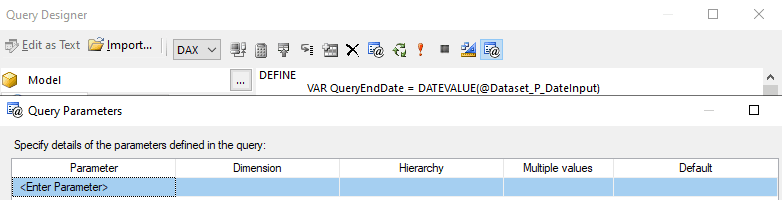
Now that you understand the difference between the Dataset Properties and the Query Designer sections, you’ll be on your way to getting that data into Excel in no time 😅
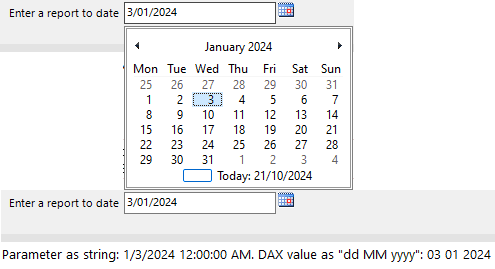
A side note for the above example: when DATEVALUE was called, the actual date remained the same despite any locale settings. The parameter value on my computer appeared in my locale (dd/MM/yyyy), appeared in Report Builder as a string using MM/dd/yyyy, was sent to the Semantic Model hosted in Australia, and came back via a DAX query with no ambiguity: